Sharing guide
Collect Requests Without Giving Access to Your Trello Board
Share a native Forms Flow+ request form with external users. Collect answers without a Trello account or board invitation, then create mapped cards.
Publish a native Forms Flow+ form and share its public link. Respondents send requests without a Trello account or board membership. Your team reviews answers through authorized board access and optionally creates mapped cards.
Watch the walkthrough
See the real workflow
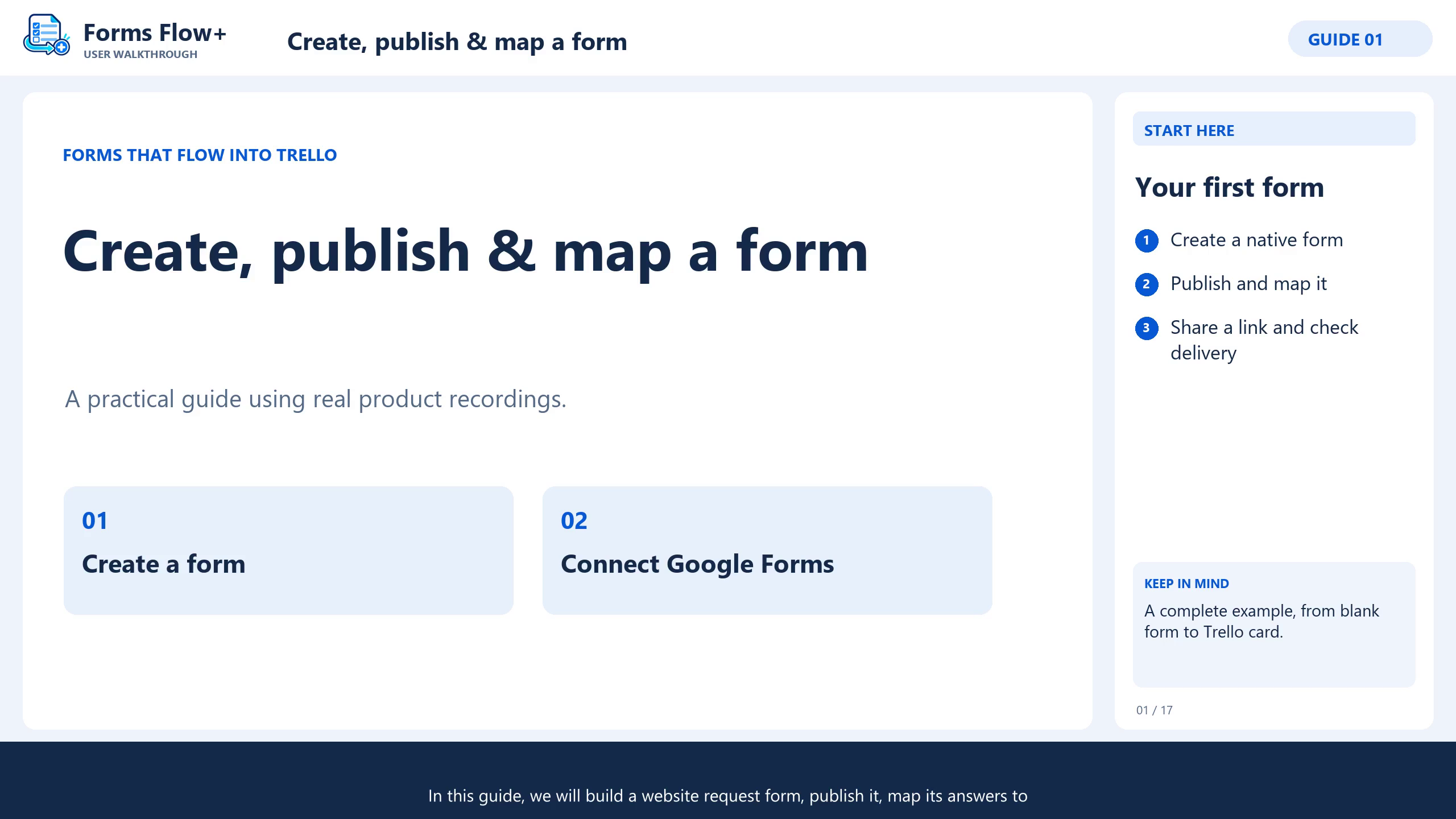
This existing Forms Flow+ walkthrough includes English narration, captions and chapters. Follow the written steps alongside the recording.
 5:01
5:01Native forms walkthrough: build, publish, share & verify
The video opens on YouTube when you choose to watch it.
Watch the 5:01 walkthrough ↗Understand what the public link exposes
This guide covers native Forms Flow+ forms. The shared link displays published questions and the introduction. It does not invite respondents to your Trello board or display response history.
Anyone who obtains the link may be able to submit answers. Treat it as a public collection link, not a password-protected client portal. Keep private board information out of question labels and introductions.
Form management and history follow board-access checks. Respondents use the public form. For connected Google Forms, sharing and sign-in restrictions are controlled by the original Google Form’s settings.
1. Build a focused external request form
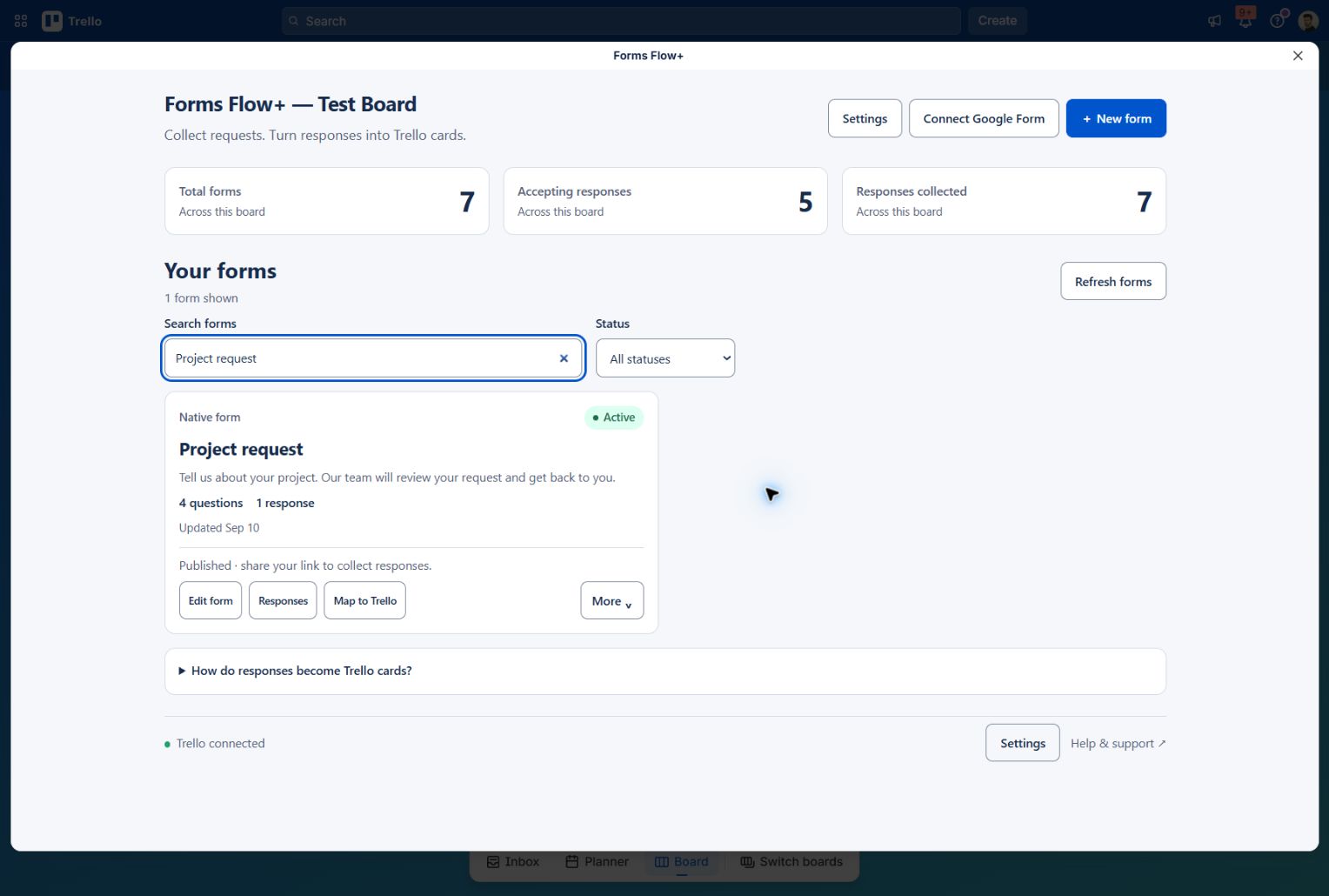
Open Forms Flow+ on the board where your team manages requests. Create a native form named Project request or Client inquiry.
Ask for a name, contact email, request type and description. Explain who will review the answers and why you collect them. Make required questions clear and avoid unnecessary personal information.
For detailed builder steps, follow How to Create a Form in Trello. Do not request passwords, payment-card details or highly sensitive information through a general-purpose intake form.
2. Publish and copy the public link
- Save the draft and use Preview to check wording.
- For automatic cards, configure Map to Trello, save the delivery connection and publish the mapping before sharing.
- Publish the form and check its Active status.
- Return to the library and choose More → Copy link.
- Paste the link into your client message, instructions or a link on your website.
Share the public form URL, not the Trello board URL, editor URL or browser-only demo. Adding a link to your website does not require custom integration code.
3. Check the experience outside Trello
- Open the public link in a private browser window where you are not signed in to Trello.
- Confirm the title, introduction and questions.
- Send one fictional request, for example from Alex Morgan.
- Check for Response received and your success message.
- Return with your authorized board account and open Responses.
With card delivery enabled, check its status and choose Open Trello card. A successful form submission and a successful Trello delivery are separate checks.
4. Make the next step clear
A sample introduction: “Tell us what you need. Our project team will review your request and contact you using the email you provide.” Adapt that to what your team actually does.
The public page does not show collected responses or your board. Respondent routes are excluded from search indexing. Noindex does not make the link private or stop someone forwarding it.
Read the privacy policy and provide the notices your collection process needs. Do not promise automatic reply emails or a customer response-status portal as part of this workflow.
Manage sharing after publication
How do I stop new responses?
Choose More → Pause on the native form. Pausing blocks new submissions without deleting responses. Resume uses the last published version; queued Trello deliveries may still finish.
Does editing a question change the live form?
Edit, save, preview and publish. Review the mapping when changing questions used in cards. Saving alone does not update the live form.
Does the respondent need a Trello account?
No, not for a published native Forms Flow+ form. Your team still needs appropriate Trello access. Google Forms may have different restrictions based on the owner’s settings.
Can respondents see my board or other answers?
The public native form shows its published questions and confirmation, not the board or response history. Keep private information out of the form’s own content.
Keep building
A useful next step
Ready for your board
Put your next response to work.
Install Forms Flow+ to save, publish and manage real forms on your Trello board.