Form builder guide
How to Create a Form in Trello
Build a Trello request form with Forms Flow+: add questions, preview and publish, map answers to cards, and share your public link.
Build questions inside the Forms Flow+ Power-Up. Save and preview the draft, publish a public link, and enable a mapping when each response should create a Trello card.
Watch the walkthrough
See the real workflow
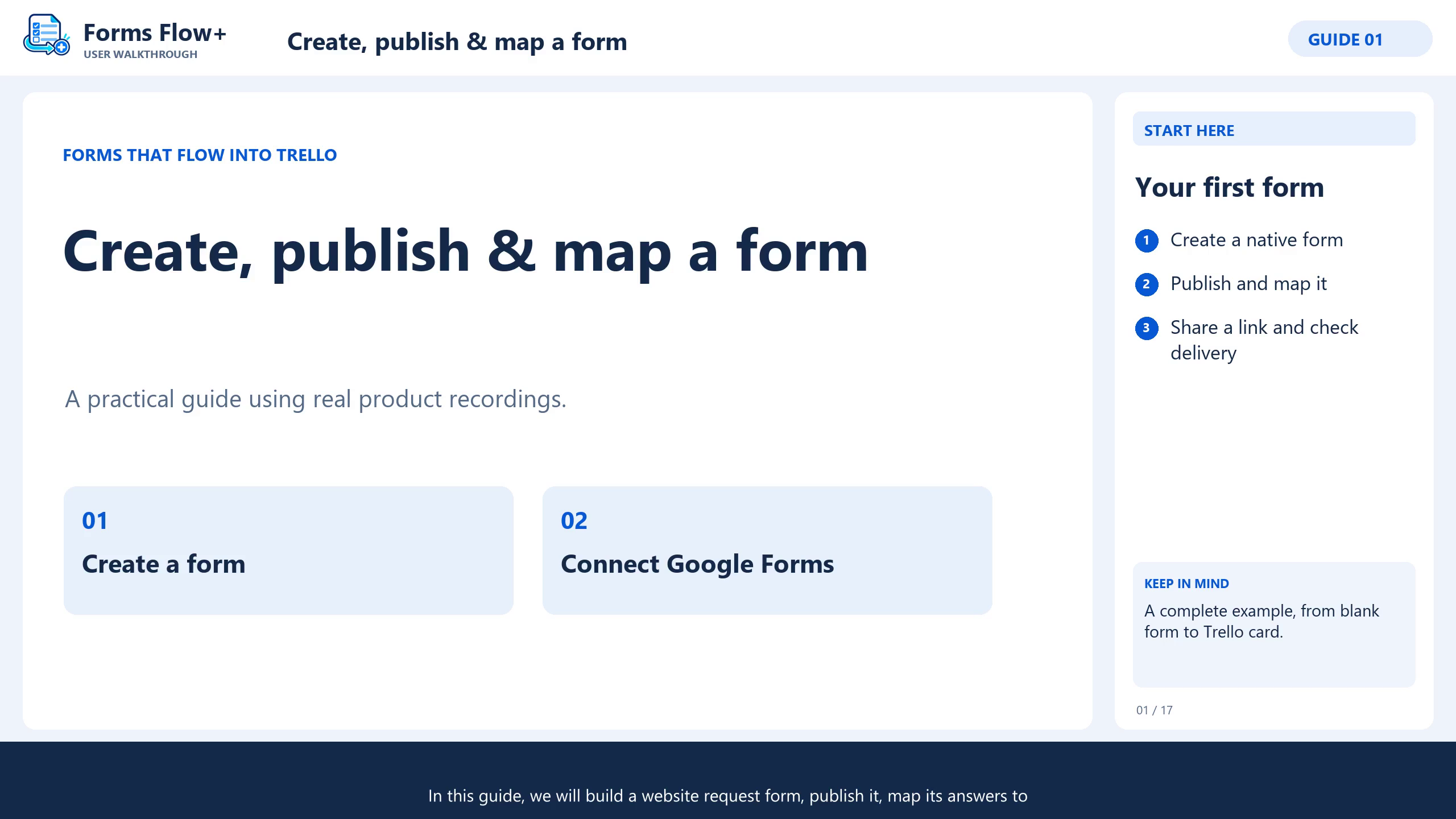
This existing Forms Flow+ walkthrough includes English narration, captions and chapters. Follow the written steps alongside the recording.
 5:01
5:01Create, map & publish your first form
The video opens on YouTube when you choose to watch it.
Watch the 5:01 walkthrough ↗Start with a clear request
Install Forms Flow+ on a board you can manage and open Forms. This example builds a Project request form. Ask only for information your team needs to review the request.
The person managing the form needs appropriate board access. People completing a published native form use its public link and do not need to join your board.
1. Create a form and add four questions
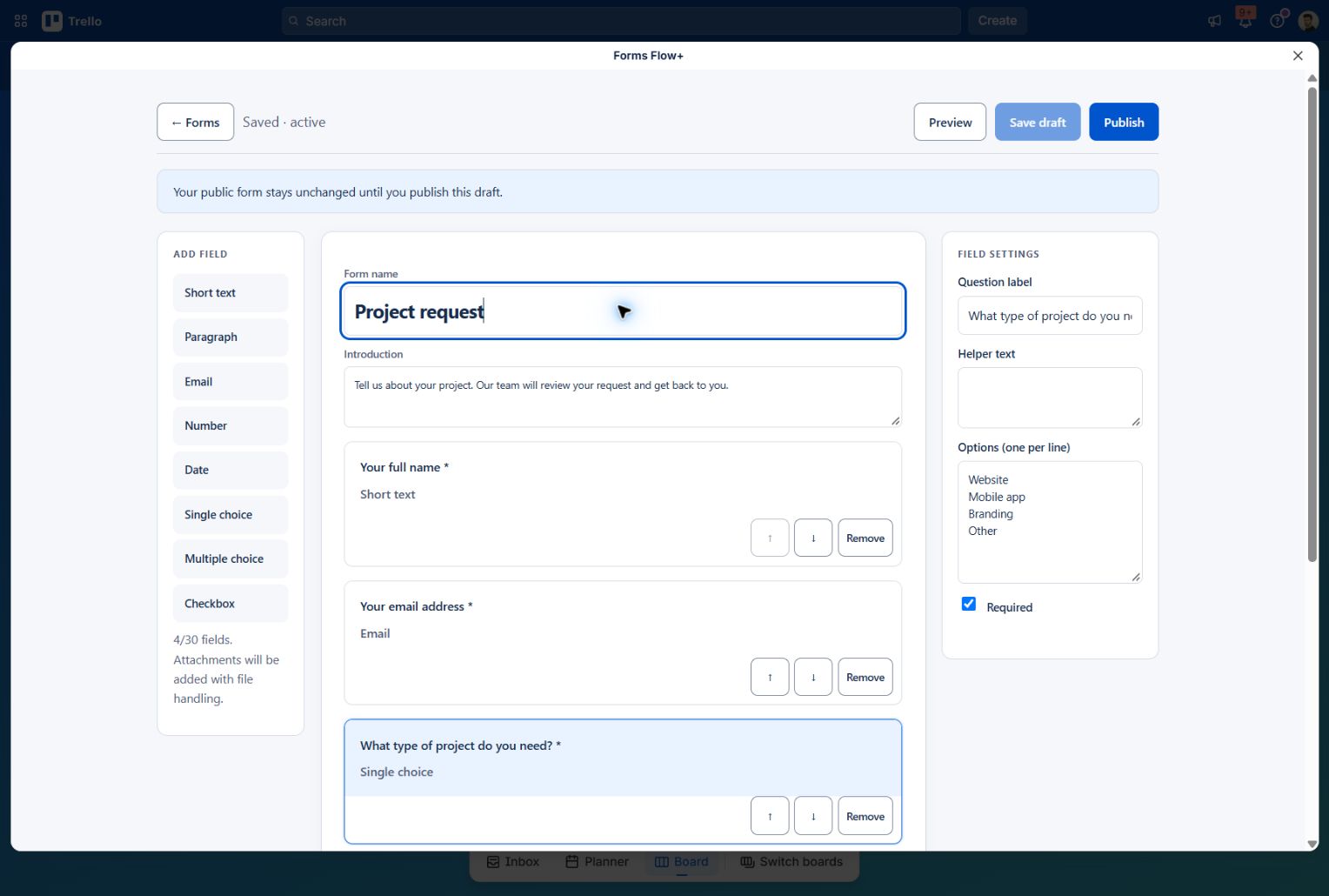
Choose + New form, enter Project request as the Form name, and write an introduction explaining what happens after submission.
| Question label | Field type | Purpose |
|---|---|---|
| Your full name | Short text | Identify the requester |
| Your email address | Give your team a way to follow up | |
| What type of project do you need? | Single choice | Offer Website, Mobile app, Branding and Other |
| Tell us about your project | Paragraph | Collect useful context |
Select a type in Add field, then select the question to edit its Question label and settings. Enter choice options one per line. Use Required only when an answer is necessary.
Write “Your email address” as the label, rather than typing your own email. Helper text explains a question; a placeholder is an example, not a saved answer.
2. Save and preview
- Set the submit-button label to Send request.
- Write a success message explaining what happens next.
- Choose Save draft and wait for the saved state.
- Choose Preview. Check question order, labels and required fields, then return to the editor.
Preview responses are not saved. Saving a draft does not update the published form until you publish it.
3. Choose whether to create Trello cards
To collect responses without cards, publish the native form and review answers in Responses. To create cards, return to the library and choose Map to Trello.
- Enable Create a Trello card for each new response.
- Choose a destination list.
- Start the title with Project request — and insert the full-name answer using its question button.
- Select answers for the description. Optionally set labels, members, a due date or compatible Custom Fields.
- Choose Save mapping & connection and complete any delivery authorization.
- Choose Publish form & mapping.
The result could be Project request — Alex Morgan, with project details in the description. Check the mapping preview before enabling delivery.
Common form-building questions
Why is Publish disabled?
Save first. Add at least one valid question, check labels and options, and read the on-screen validation. Required checkboxes do not unlock publishing. You also need permission to manage the form.
Why does the public link show old questions?
Saved edits remain a draft until published. Preview your changes, review affected mapping, then publish again.
Can I upload attachments?
The native builder currently offers Short text, Paragraph, Email, Number, Date, Single choice, Multiple choice and Checkbox. Do not plan this workflow around file-upload fields.
Can I practise before saving a real form?
Use the browser-only demo. Changes stay in the page and disappear when it closes. Install on a board to save and publish real forms.
Keep building
A useful next step
Ready for your board
Put your next response to work.
Install Forms Flow+ to save, publish and manage real forms on your Trello board.