Integration guide
How to Connect Google Forms to Trello
Connect Google Forms to Trello with Forms Flow+: select a form, import responses, map card fields, and verify your first synchronized card.
Connect your Google account inside Forms Flow+, select a Google Form, preview the import, and publish a Trello mapping. Responses appear in Forms Flow+, with cards created when you enable card delivery.
Watch the walkthrough
See the real workflow
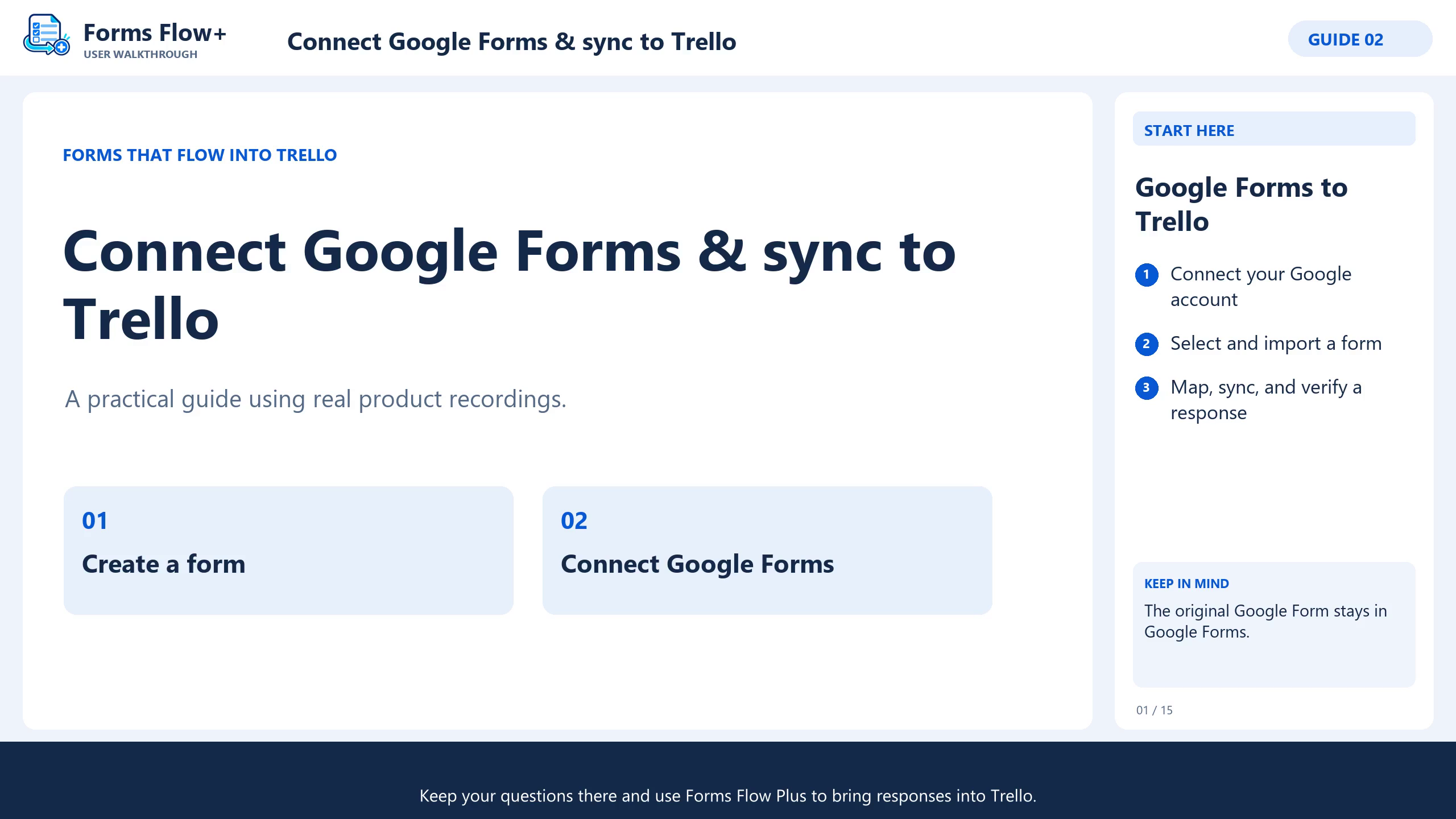
This existing Forms Flow+ walkthrough includes English narration, captions and chapters. Follow the written steps alongside the recording.
 4:34
4:34Connect Google Forms & sync responses
The video opens on YouTube when you choose to watch it.
Watch the 4:34 walkthrough ↗Before you connect
You need Forms Flow+ installed on a Trello board you can manage, access to the Google Form you want to use, and a destination list. Questions stay managed in Google Forms; Forms Flow+ imports supported questions and responses.
Use a form with fictional project requests for your first run. Decide whether to import earlier responses as well as future ones. Including old responses can also create cards for them when mapping is enabled.
1. Connect Google and choose your form
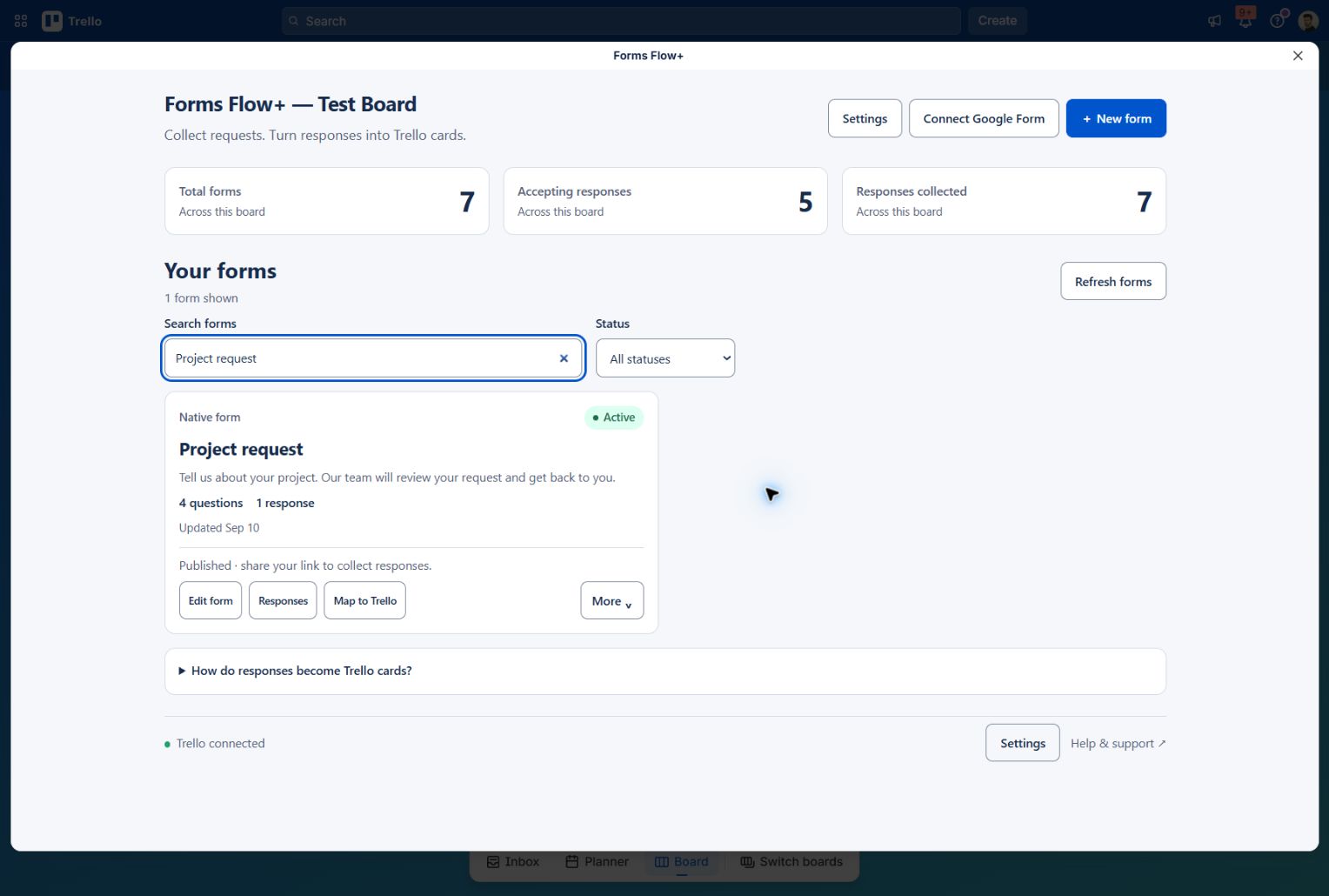
- Open your Trello board and choose Forms.
- Choose Connect Google Form, then Connect Google.
- Complete Google authorization. Close the authorization tab and choose Refresh connection.
- Choose Choose from Google Drive and select your Google Form in Google Picker.
The connection screen explains the requested access and links to the privacy policy. Forms Flow+ does not edit the original Google Form.
2. Review the import
- Choose Preview import and check the supported questions.
- Set Include existing responses deliberately. Leave it unchecked to skip earlier responses.
- Choose Add to workspace.
Adding the Google Form does not finish card setup. Save a mapping and publish before expecting synchronized answers to become Trello cards.
3. Map answers to a Trello card
In the library, choose Map to Trello. Enable Create a Trello card for each new response, select the destination list, and decide which answers belong in the title and description.
| Question | Trello destination |
|---|---|
| Your full name | Insert after “Project request —” in the title |
| Tell us about your project | Include in the description |
| Preferred delivery date | Choose a compatible Date answer for the due date |
Use question buttons to insert answers into the title. Optionally set labels, members or compatible Custom Fields. Choose Save mapping & connection, complete any delivery authorization, then Publish form & mapping.
4. Send a test and verify delivery
- Submit a fictional response through the original Google Form.
- Return to Forms Flow+. If needed, choose More → Sync now and allow processing time.
- Open Responses and refresh to find the imported answer.
- Check delivery status. When it succeeds, choose Open Trello card and verify the list, title and description.
Synchronization is not a promise of instant delivery. Check both the imported response and the created card before sharing with your audience.
If responses or cards do not appear
The form does not appear in Picker
Select the Google account with access to the form, and choose a Google Form file. Return to Forms Flow+ and refresh the connection.
A response appears without a card
Confirm card creation is enabled, save the destination and delivery connection, and publish the mapping. Review the response’s delivery status before retrying. A stored response and a delivered card are separate outcomes.
I changed the Google Form questions
Choose More → Refresh Google questions, review mapping, and publish again. Continue editing the original questions in Google Forms.
I want to stop syncing
Pause to stop imports; the original Google Form can still collect answers. Disconnecting stops future access and attempts to revoke authorization. It does not erase imported data or existing Trello cards. Read the privacy policy first.
Keep building
A useful next step
Ready for your board
Put your next response to work.
Install Forms Flow+ to save, publish and manage real forms on your Trello board.